Perfect Profile Photo
This is exclusively for use by CIH employees only.
Do not share with agents.
- 1
Acknowledge responsibility
This tool uses AI to modify photos. By uploading, you accept responsibility for the accuracy and likeness of the final image on the agent’s behalf.
- 2
Upload your image
Don’t worry about the existing composition or quality — the tool can upscale, enhance, extend backgrounds, fill in, and rebuild shoulders.
- 3
Position the subject
Drag to move and use zoom to frame the subject. Adjusting the crop is what unlocks the AI recommendations below.
- 4
Review preview & recommendations
Check the square and circle previews, and apply any AI recommendations if shown.
- 5
Export the image
Download the standardized square JPEG under 500KB.
- 6
Upload to Agent Profile Manager
Follow the step-by-step instructions provided below.
Or try a sample portrait
Upload to Agent Profile Manager
Once you've exported the image, add it to the agent's profile through the following steps:
- 1
Log in to Compass.comThis is a temporary access path for staff to update agent profile photos.
Open compass.com and log in with your credentials.
- 2
Open Settings
Click Settings in the bottom-left corner.

- 3
Open Admin Tools
Click Admin Tools in the bottom-left corner.

- 4
Open the Agent Profile Editor
Select Agent Profile Editor from the top menu, or scroll down to Internal Pages.

- 5
Find the agent
Search for the agent in the search bar.

- 6
Scroll to Profile Photo
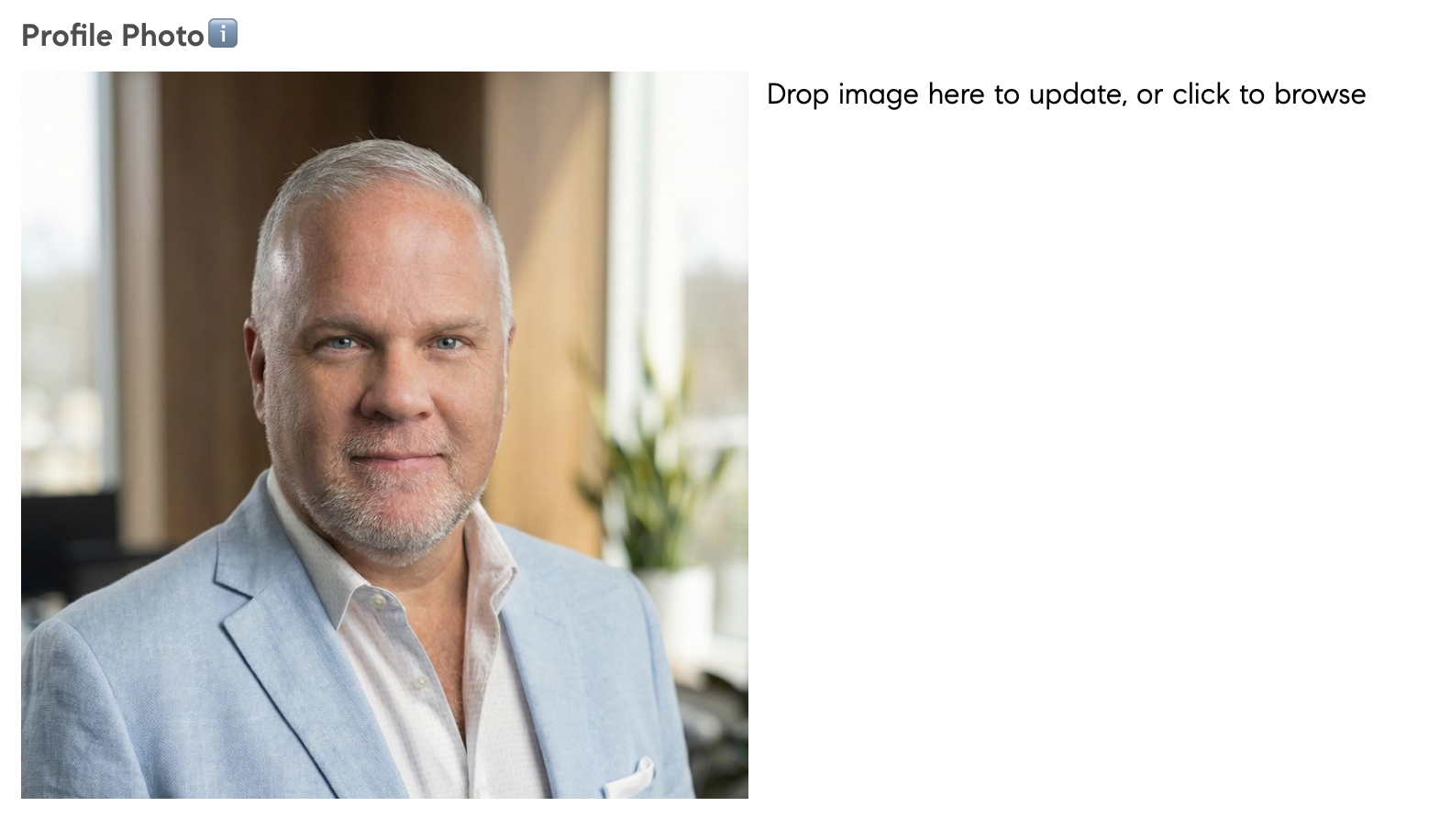
On the agent's record, scroll down to the Profile Photo section.

- 7
Upload the image
Follow the on-screen instruction that says “Drop image here to update or click to browse.” Drop the exported image there, or click to browse and select it.